
I moved this site’s DNS under Cloudflare’s free plan and left the proxy off on purpose. Setup took about 15–20 minutes. I spent longer learning what Cloudflare offers than on the click-path itself.
I’d read that it was a 5 minute set up. It is quick once you know what you’re choosing. Two decisions get mixed together online: who answers DNS for your domain, and whether visitor traffic passes through Cloudflare. I did the first and left the second grey (DNS-only) so WordPress.com keeps handling the site and its certificate. Proxied (orange) is when WAF, CDN, and edge DDoS can apply — still on the free plan — and I left that for later.
This was also a chance to brush up on DNS and how Cloudflare’s stack works behind the scenes.
A bit on DNS and Cloudflare
DNS is the phone book of the internet. A nameserver (the DNS server) is the server that answers “where does this domain live?”
When you move DNS to Cloudflare, you are not moving the website files. Thats unless you use Cloudflare to host your website. This blog is hosted on WordPress, which hosts the pages. You are only changing who answers the phone-book questions (Cloudflare).
Cloudflare is a company that offers DNS, a content delivery network (DNS routing), a web application firewall (WAF), among other products. On the free plan you create a zone for your domain. A zone is Cloudflare’s container for that domain’s DNS records.
DNS vs Cloudflare proxy (keep these separate)
Two decisions get mixed together online. Keep them separate:
- Who answers DNS? — After the nameserver change, Cloudflare answers the phone book for your domain. I swapped out the wordpress native DNS hosting server for Cloudflare hosting my websites DNS.
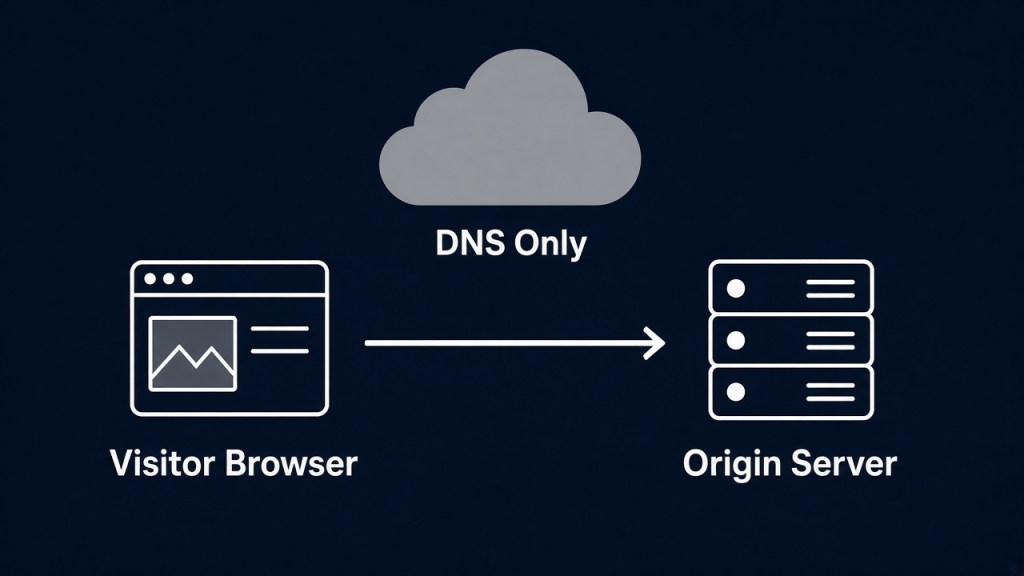
- Does visitor traffic pass through Cloudflare? — No, not on DNS-only (grey cloud). Visitors go straight to WordPress.com. Orange cloud (proxied) is when traffic hits Cloudflare first — that’s when WAF, CDN, and edge DDoS can apply. I did decision 1 and left decision 2 off on purpose.
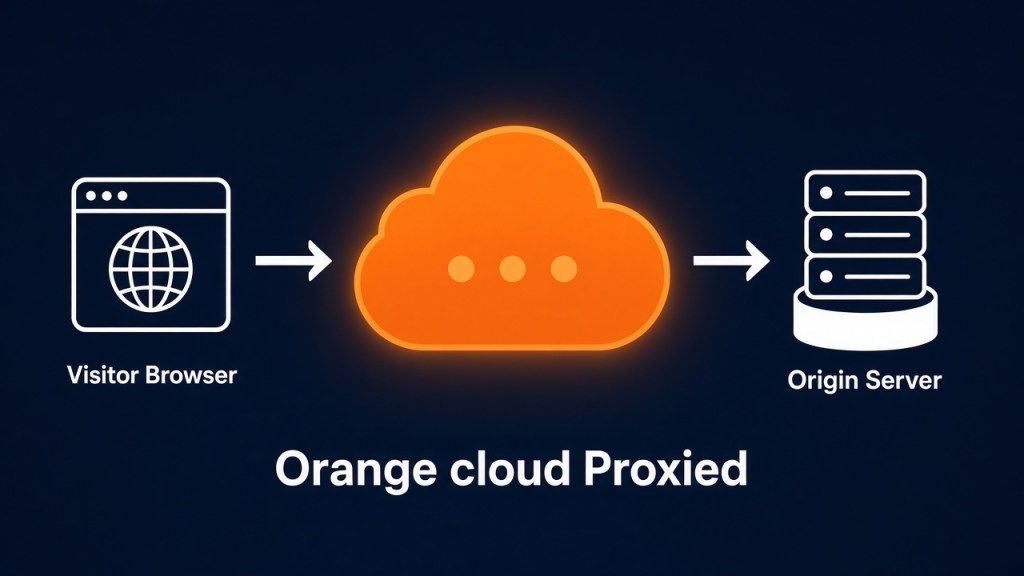
Using the proxy needs a bit more SSL care (Full strict, don’t block certificate renewal). For now WordPress.com keeps handling cert rotation.
Step 1: Create a free Cloudflare zone
Set up time 5 minutes
Create a Cloudflare account if you do not have one. Add your domain on the free plan. Cloudflare will scan existing DNS records or ask you to enter them. Cloudflare asks for you to enter your DNS servers and provides helpful guides on how to find those. Some examples of updating my DNS records below. Cloudflare provides examples for you.
For my site that meant updating my A record, CNAME, and TXT records:
- Apex
Arecords pointing at WordPress.com’s hosting addresses (examples only:192.0.2.10and192.0.2.11) - A
wwwCNAMEpointing at the apex (root domain). - A
TXTrecord for Google Search Console verification (placeholder value only)
Step 2: Point the domain’s nameservers at Cloudflare
Set up time 1 minutes
Cloudflare gives you two nameserver hostnames. For me, WordPress.com is still my website registrar. I replaced the old nameservers with Cloudflare’s nameservers.
After DNS propagates, check the basics:
- Public DNS shows Cloudflare as the nameserver
- The site still returns a normal success response
wwwstill redirects to the apex (Your root domain)- The TLS certificate WordPress.com issued (through a public certificate authority) continues to validate
- Search Console verification
TXTstill resolves - WHOIS still shows the same registrar, contacts, privacy status, and expiry — only the nameserver lines change.
Learning: If those checks pass, Cloudflare is answering DNS and visitors are still going straight to WordPress.com. This post covers the DNS-only setup.
Thats it, setting up your website to use Cloudflares DNS server is now complete.
DNS-only (Grey Cloud)
DNS-only means Cloudflare answers the phone book, and the visitor’s browser talks to the origin server. The origin server for my blog is hosted on WordPress.com.
Pros
- The site behaves like it did before the move.
- You get access to Cloudflare’s DNS UI for edits, plus a free path later to Email Routing and to SPF / DMARC.
- A ready Cloudflare zone so you can flip on CDN + WAF when ready.
- WordPress.com can keep renewing its own TLS certificate without Cloudflare.
- No redirect loops from a wrong Cloudflare SSL mode, because Cloudflare is not terminating HTTPS for visitors.
Cons
- No Cloudflare CDN or cache in front of the site
- No Cloudflare WAF, custom rules, geo-blocking, or bot protections at the edge
- Cloudflare’s DDoS and “orange cloud” protections do not apply
- Cloudflare is not terminating TLS for you in this mode
- On DNS-only you can still open Cloudflare’s dashboard and write a WAF rule. It won’t enforce anything until traffic is proxied (orange cloud) — same pattern you’ll see at work: draft the control first, turn it on when the path is ready.
Cloudflare – Proxied (orange cloud): what changes if you flip to using the Proxy
Orange cloud is when basic WAF, CDN, and DDoS protections can apply — all available without a paid plan.
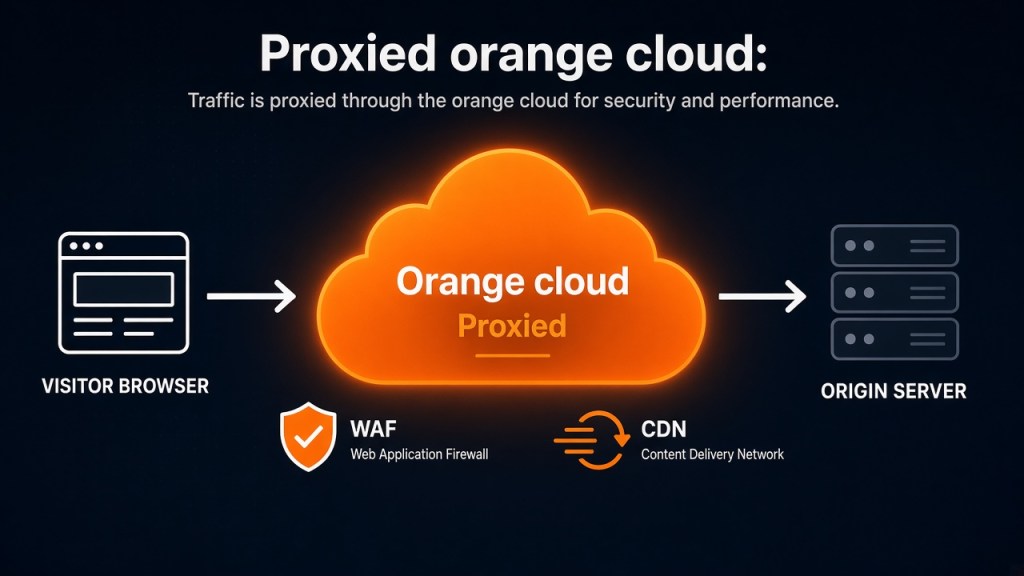
Proxied means the visitor hits Cloudflare first. Cloudflare then fetches the page from WordPress.com. That is when WAF rules, caching options, and many edge protections start to matter. Cloudflare’s docs call this Proxied vs DNS only.
Pros
- Custom WAF rules can run, including a geo-block
- CDN and caching options become available
- Edge DDoS and bot features can apply
- Cloudflare can manage TLS in front of the origin
Cons and risks on WordPress.com
- Putting a custom domain behind Cloudflare’s proxy requires considerable time in backend work and testing.
- Certificate renewal can fail if automated validation traffic is blocked or sent the wrong way
- The wrong Cloudflare SSL mode can create redirect loops
- Aggressive caching can serve stale pages if you misconfigure it
I drafted a Cloudflare WAF custom rule that would block traffic from a short list of country codes. That rule does nothing now unless I turn on Cloudflare’s proxy. For now, I have set up rules on firewalls, so this was nice to do, and I have the option to turn this on down the road.
Why Cloudflare is still useful on DNS-only
Even without the proxy you get a cleaner place to manage records, a free path to Email Routing (for example contact@example-blog.tech into a personal inbox), and a place to publish SPF and DMARC so outsiders have a harder time spoofing mail from your domain.
Why SPF, DMARC, and DKIM matter
SPF, DMARC, and DKIM are DNS records that help receiving mail servers decide whether mail claiming to be from @yourdomain is real. Put simply: SPF says which servers may send for you, DKIM adds a cryptographic signature, and DMARC tells receivers what to do when those checks fail. Publishing them makes it harder for strangers to spoof your domain.
That same mail path is how a personal site looks more legitimate. Readers trust contact@yourdomain more than a free @gmail.com. Cloudflare Email Routing can receive mail at your domain and forward it into your favorite email provider (@gmail or @proton.me) — free on DNS-only. One honest limit: Routing is inbound only. Sending as @yourdomain needs a separate send setup.
Takeaways
If you run a personal site on WordPress or another website provider that issues its own certificates, Cloudflare DNS-only is a solid first setup. You improve how DNS is managed, keep the option open to configure Email Routing and SPF / DMARC later, and learn using DNS vs using a cloudflare proxy without putting Cloudflare in the request path on day one.
I set Cloudflare up to harden how the domain is answered and to learn the product hands on. I stayed on DNS-only, kept the site up, and left a clean path to turn on a WAF and proxy later when I’m ready for that tradeoff. This post is not paid for or endorsed by Cloudflare.
About the author
Jessie Gonzalez is a cybersecurity engineer writing practical guides and real projects in public on Cybersparks. More on About.
Written October 24, 2026


Leave a Reply